PLATFORM

MetaTrader 5 (MT5) Installation Guide

PT Trident Pro Futures offers its clients a step-by-step MetaTrader 5 (MT5) installation guide.

For Desktop

Jendela persetujuan lisensi instalasi MetaTrader 5
Download MetaTrader 5

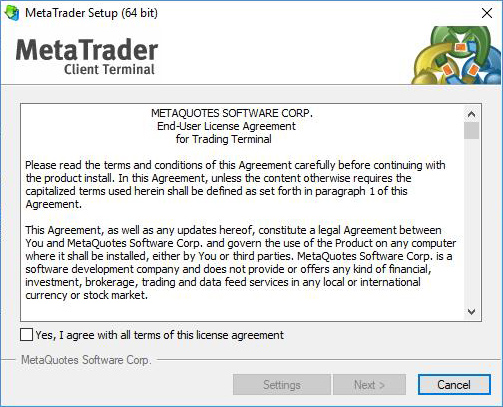
First you need to download the installation of MetaTrader 5 files for desktop PC. Or visit our MT5 platform page. Once you downloaded, You may run the MT5 setup file, a MetaTrader 5 Setup window will appear. As per the picture.
Persetujuan lisensi MetaTrader 5 yang sudah dicentang
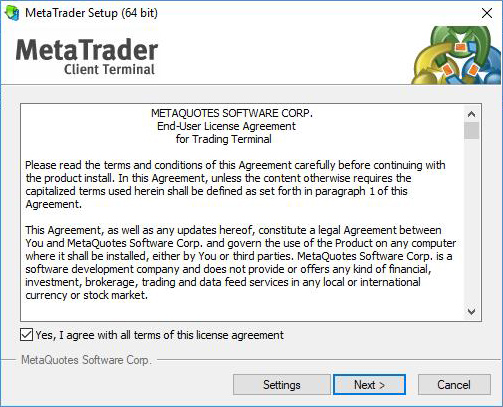
Please Read The License Agreement

Carefully read and accept the MetaTrader 5 License Agreement before you proceed with the installation, once you finished please ‘tick’ the ‘box’ and click “next” to proceed.

Proses instalasi MetaTrader 5
Installing MetaTrader 5

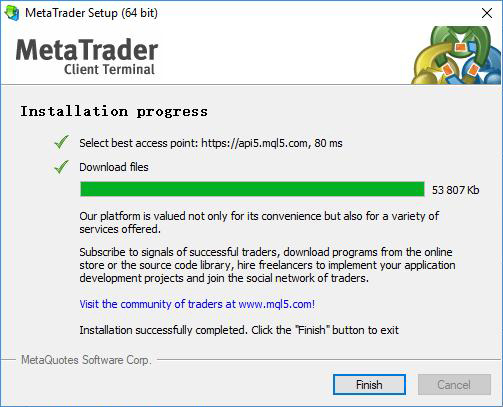
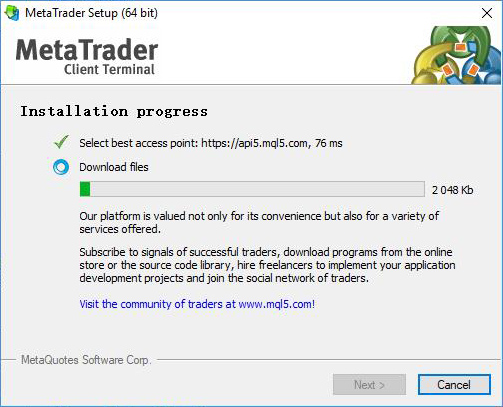
Progress of installation will be shown as in picture, Please wait patiently for the installation to complete.

Instalasi MetaTrader 5 selesai
Installing MetaTrader 5

Progress of installation will be shown as in picture, Please wait patiently for the installation to complete.

Platform MetaTrader di komputer desktop
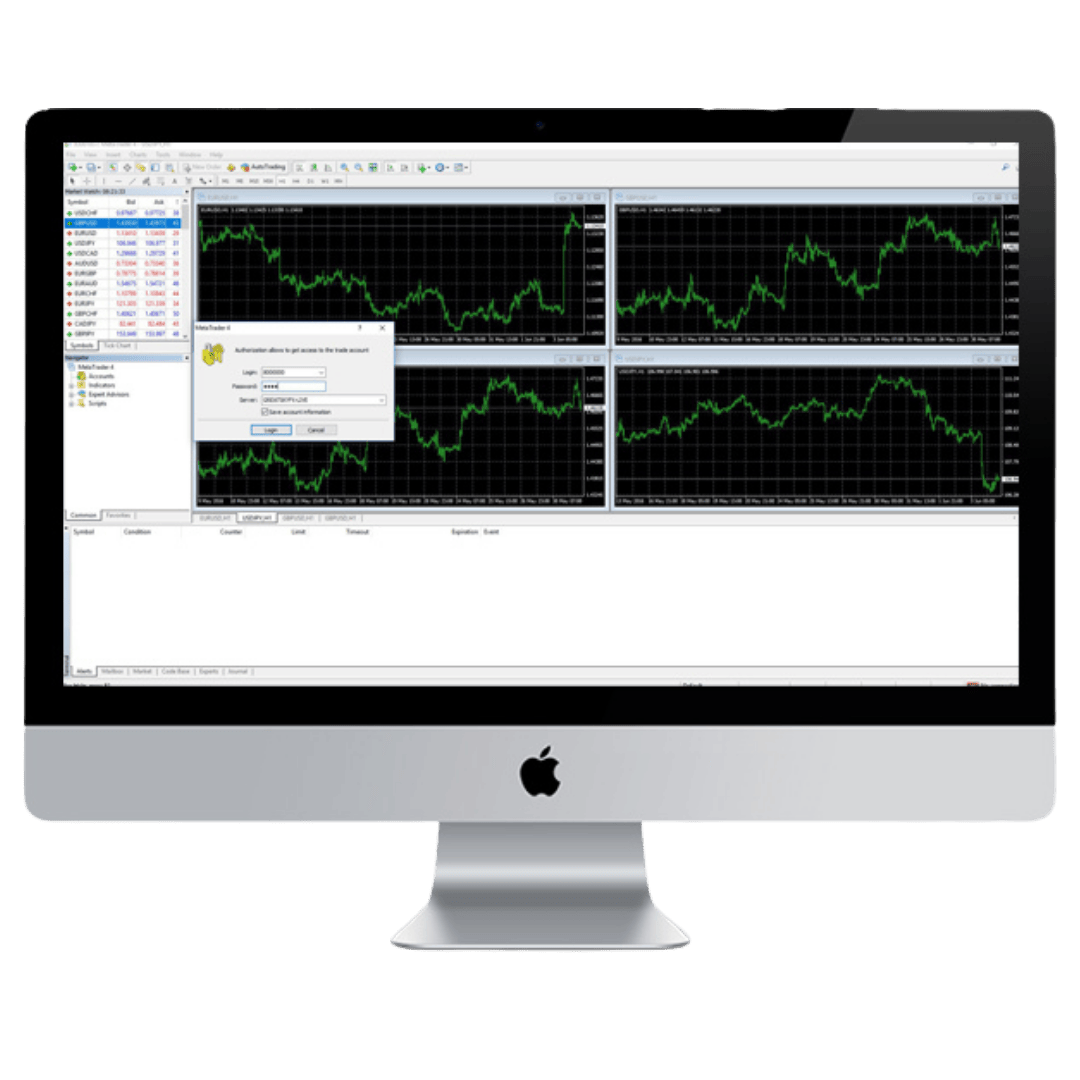
Running the MT5 Terminal

Each and every one of our customers receives personalised assistance from our dedicated support team.

For Android

Pencarian MetaTrader di Google Play Store
Getting the MT5 for Android

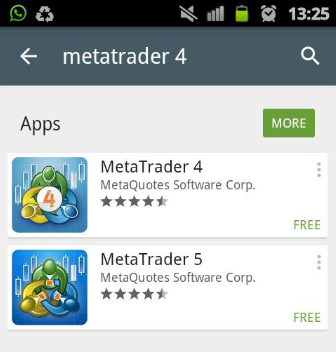
The MetaTrader 5 app is available in Google Play Store. To install it, enter MetaTrader 5 in the search bar and select the MetaTrader 5 app from MetaQuotes Software Corporation from the search results. Alternatively if you do not have access to Google Play Store, you may need to download the apk file from this link.

Halaman MetaTrader di Google Play Store
Installing MT5

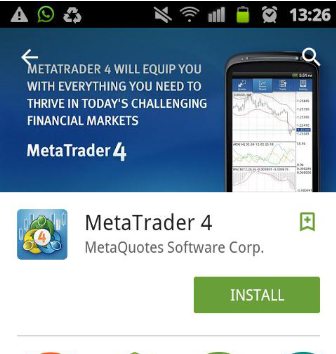
Install the app by tapping Install on the app's page in Google Play. Or run directly form the APK file you had downloaded.

Ikon MetaTrader di layar Android
Open the MetaTrader 5 App

Progress of installation will be shown as in picture, Please wait patiently for the installation to complete.

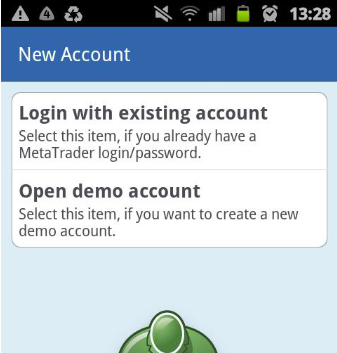
Pilihan login akun atau akun demo di Android
Choose Login

In the server search field, type "TridentPro" and select the PTTridentProFutures-Trade server. Log in with the live account credentials you received by email when you opened your account.

Layar login akun MetaTrader di Android
Login into your account

In the server search field, type "TridentPro" and select the PTTridentProFutures-Trade server. Log in with the live account credentials you received by email when you opened your account.

For IOS

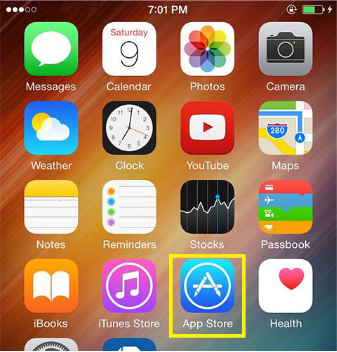
Membuka App Store di iPhone
Go to App Store

Touch to open App Store on your iPhone.

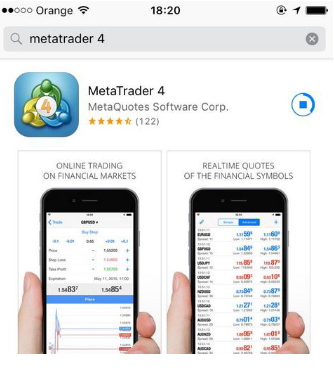
Pencarian MetaTrader di App Store
Search for MetaTrader 5

Type MetaTrader 4 on App Store search bar to search it.

MetaTrader di App Store
Find MetaTrader 5

Choose the MetaTrader 5, make sure it is from MetaQuotes Software Corp.

Mengunduh MetaTrader dari App Store
Installing MetaTrader 5

Touch “get” to stat installing the MetaTrader 5, you may prompt to input your apple app store account and password.

Pilihan akun MetaTrader di iOS
Login to your MT5 live account

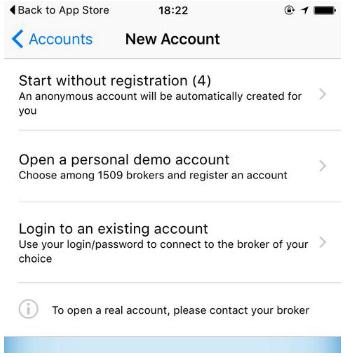
Once you had completed your installation, proceed to run the Metatrader 5 app, you will prompt to login page, proceed to choose “login to an existing account”, choose your broker and proceed to login to your live account.